How to Add Your Business to Google Maps: A St. Louis Guide
Revised August 29, 2026
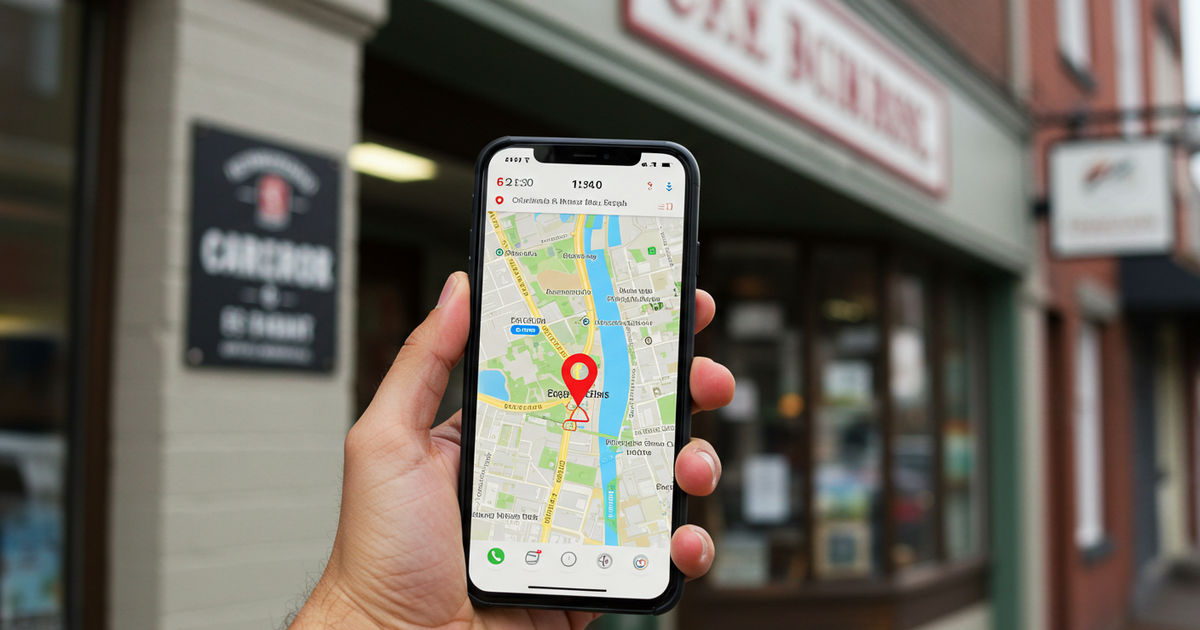
How do I get my business to show up on Google Maps?
To add your business to Google Maps, create or claim a free Google Business Profile at google.com/business, enter accurate business details, and complete Google’s verification. Once verified you appear on Maps and in local Search — which matters because 71% of consumers used Google to find a local business in the past year (BrightLocal, 2026).
Keep reading ↓Someone in your part of St. Louis pulls out their phone, opens Google Maps, and searches for exactly the service you offer. A handful of businesses pop up with pins, ratings, and a tap-to-call button — and one of them gets the customer. If your business isn’t on that map, you weren’t even in the running, and you’ll never know how many customers you quietly lost. For a local business, being on Google Maps isn’t optional anymore; it’s the modern equivalent of having a sign on the street.
The good news: getting your business on Google Maps is free, it’s more approachable than it looks, and once you understand that Google Maps and your Google Business Profile are really the same thing, the whole process makes sense. This is a step-by-step 2026 guide to adding your St. Louis business to Google Maps — whether it’s free, exactly how to do it, how long it takes, and what to do if your business isn’t showing up.
How Do You Add Your Business to Google Maps?
You add your business to Google Maps by creating and verifying a Google Business Profile — the two are the same system. When you claim or create your profile and verify that you own the business, Google places you on Maps and in local Search, complete with your pin, hours, photos, reviews, and contact buttons. So “getting on Google Maps” and “setting up your Google Business Profile” are one and the same task; there’s no separate Maps-only listing to create.
The process has three parts: find or create your business on Google, fill in your details, and verify ownership. Once verified, you appear on the map. Then a little optimization determines how well you show up. Let’s walk through it.
Is It Free to Put Your Business on Google Maps?
Yes — completely free. Creating a Google Business Profile and appearing on Google Maps costs nothing, and there is no paid tier required to show up on the map. Google makes its money from ads, so you may be offered the option to run paid Google Ads that can place you more prominently, but that is entirely separate and optional. The core listing — your pin on the map, your profile, your reviews, your contact buttons — is free forever. Anyone who tries to charge you a fee simply to “get listed on Google Maps” is selling you something you can do yourself for nothing. It is genuinely one of the highest-value free marketing assets a local business has.
Step by Step: Adding Your Business
Here’s the actual process. First, search for your business on Google or in Google Maps to see whether a listing already exists — Google often auto-generates unclaimed profiles, and if yours is there, you’ll claim it rather than create a duplicate. Second, if it exists, click to claim it; if not, create a new profile and enter your business name, category, and location. Third, add your details: address (or service area if you don’t have a storefront customers visit), phone, website, hours, and category. Fourth, verify ownership — usually by phone, text, email, or a mailed postcard with a code, depending on your business. Once verification is complete, your business appears on Google Maps and in local Search. That’s the whole path from invisible to on-the-map.
Storefront vs. Service-Area Business
One important distinction for St. Louis businesses: how you appear on the map depends on whether customers come to you or you go to them. If you have a storefront or office customers visit — a shop, a restaurant, a clinic — you list your street address, and your pin sits at that location. If you’re a service-area business that travels to customers — a plumber, a mobile groomer, a house cleaner — you can hide your address and instead set the specific areas you serve, like Kirkwood, St. Charles, or the Metro East. Getting this right matters: a service business that lists a home address incorrectly, or fails to set its service areas, shows up for the wrong searches or none at all. Choose the model that matches how you actually operate, and set your areas to the real communities you cover.
How Long Does It Take to Show Up on Google Maps?
It depends mostly on verification. Once you submit your business, the listing exists, but it typically won’t appear publicly on Maps until verification is complete — and that timing varies by method. Instant methods like phone or email can verify you in minutes; a mailed postcard code usually takes several days to a couple of weeks to arrive. After you’re verified, your business generally appears on Maps within a short window, sometimes almost immediately and sometimes after a day or two as Google processes it. Where you rank among nearby competitors, though, builds over time as you complete your profile, gather reviews, and stay active. So: verified in minutes to weeks depending on method, visible shortly after, and climbing steadily as you optimize.
What to Have Ready Before You Start
The whole process goes faster if you gather a few things first. Have your exact business name as it really appears (resist the urge to add keywords — that’s against Google’s rules and can get you suspended), your address or service areas, a working phone number you can receive a verification call or text on, your website if you have one, your hours, and the most accurate category for what you do. It also helps to have a few good photos ready — your logo, storefront, and some real shots of your work or products. With those in hand, creating and completing the listing takes one focused sitting, and you won’t stall halfway through hunting for a detail. A little prep turns “I’ll get to it someday” into a done listing this afternoon.
Nothing to do with Google — but here’s where to eat in Ferguson.
Add Photos So People Actually Choose You
Getting on the map gets you seen; photos get you chosen. When your business appears in Maps results, the listings with clear, appealing photos draw far more clicks and calls than the blank ones next to them — people want to see where they’re going and what to expect. Add a recognizable logo and cover image, plus real photos of your storefront, your interior, your team, and your actual products or finished work. Authentic images beat stock every time, and a few taken on your phone are plenty to start. This small step is one of the highest-return things you can do right after getting on the map, because it directly influences the split-second decision a searcher makes between you and the pin next to yours.
Keep Your Map Listing Accurate
A Google Maps listing is only as good as its accuracy, and nothing frustrates a customer — or hurts you — more than driving to a closed business or calling a dead number. Update your hours the moment they change, especially around holidays, and fix your address or phone the instant anything is different. Make sure the details on your map listing match exactly what appears on your website and other listings, because inconsistencies confuse both customers and Google. A quick check every month or two catches anything that’s drifted. Being on the map is a lasting asset only if the information on it stays true — an outdated pin can do more harm than no pin at all.
Why Isn’t My Business Showing Up on Google Maps?
If you’ve added your business but can’t find it, a few usual suspects are almost always to blame. The most common is that you never completed verification — an unverified listing generally won’t display publicly. Others: your profile is too new and still processing; there’s a duplicate listing causing confusion (search carefully and remove or merge duplicates); your information is incomplete or inconsistent with what appears elsewhere online; you’re searching from a distant location, so you don’t appear for a search far outside your area; or the profile was suspended for a guidelines issue. Work through those in order — verify first, then check for duplicates and completeness — and if you’re still invisible after that, our wider checklist of reasons a business doesn’t show up on Google covers the St. Louis metro traps as well, like two Troys and City-versus-County addresses. If you suspect a suspension, our guide to GBP suspension and reinstatement walks through the fix.
Once You’re on the Map, Optimize to Rank
Being on Google Maps is the entry ticket; ranking well among nearby competitors is where the customers are. Once you’re verified and visible, the work shifts to optimization: complete every section of your profile, add real photos, choose the right categories, gather a steady stream of reviews and respond to them, post regularly, and keep everything current. Consistency across your other listings helps too, since Google cross-references your information to decide how much to trust you. In other words, getting on the map is step one; showing up near the top for “near me” searches is the ongoing game — and it’s the same work that makes your whole local presence stronger. Our full guide to optimizing your Google Business Profile covers exactly how.
Getting on the map is stronger when your information is consistent everywhere. A listing on the St Louis Near Me Directory reinforces the same name, address, and phone Google and AI assistants use to trust and place you — a consistent citation that strengthens your whole local presence.
Get found across the metro. Listing your business adds the local signal that helps you show up in both Maps and AI search.
More Google Business Profile Guides
- The complete Google Business Profile management guide
- How to optimize your Google Business Profile
- How to respond to Google reviews
Frequently Asked Questions
Is it free to put your business on Google Maps?
Yes, completely free. Creating a Google Business Profile and appearing on Google Maps costs nothing, with no paid tier required to show up. Google offers optional paid ads for more prominence, but the core listing — your pin, profile, reviews, and contact buttons — is free forever. Anyone charging a fee just to “get you listed” is selling something you can do yourself for nothing.
How do I register my business location on Google Maps?
Through your Google Business Profile. If customers visit you, enter your street address so your pin sits at your location. If you travel to customers as a service-area business, you can hide the address and set the specific areas you serve instead. Verify ownership after entering your location, and your business will register on the map once verification completes.
How long does it take for a business to be added to Google Maps?
It depends on verification. Instant methods like phone or email can verify you in minutes; a mailed postcard code takes several days to a couple of weeks. Once verified, your business generally appears on Maps within a short window — sometimes immediately, sometimes after a day or two. Ranking well among competitors then builds over time as you complete your profile and gather reviews.
Why isn’t my business showing up on Google Maps?
Most often because verification was never completed — unverified listings usually don’t display publicly. Other causes: a brand-new profile still processing, a duplicate listing, incomplete or inconsistent information, searching from far outside your area, or a suspension. Verify first, then check for and remove duplicates and complete your details. If you suspect a suspension, follow the reinstatement steps.
Can I add my business to Google Maps without a storefront?
Yes. If you’re a service-area business that travels to customers — a contractor, cleaner, or mobile service — you can create a profile without displaying a public address, instead setting the specific towns and neighborhoods you serve. This puts you on the map for the areas you actually cover, which is exactly right for a business customers don’t physically visit.
Can I add my business to Google Maps for free?
Yes, entirely. Claiming and verifying a Google Business Profile costs nothing, and Google does not sell placement in the local map results. Anyone charging a fee to get you listed is charging for the labor of doing it, not for access — worth knowing before you agree to a monthly rate.
Why won't my business show up on Google Maps?
Usually verification is incomplete, the profile is suspended, or the address does not meet Google’s rules for a physical location. Service-area businesses without a storefront have to hide the address rather than list a residential one. New profiles also take time to surface, so check status before assuming a penalty.
How do I insert my business in Google Maps?
Add it from Maps or Search while signed in, choose the most specific primary category you honestly fit, then verify — by postcard, phone, email or video depending on what Google offers your business type. Verification is the step that actually publishes it; everything before that is a draft.

Written by a dedicated team of St. Louis locals who live, work, and play right here in the St. Louis metro. Founder Lane Forman and team are committed to building the region’s most trusted directory by verifying listings and connecting local businesses with loyal customers across Missouri and Illinois.